
How to Add Booking Calendar in WordPress?


Key Takeaways
You can add booking calendar in WordPress in two simple ways. You can embed tools like Google Calendar or Calendly using the Custom iFrame plugin. Or you can use a full booking plugin like BookingPress that builds the entire booking system inside WordPress.
With the Custom iFrame plugin, you create your calendar on platforms like Google Calendar or Calendly and then embed it on your site with one link. It is simple and quick to set up. BookingPress gives you a complete booking solution inside WordPress, including forms, schedules, and payments.
Both methods work well. The right choice depends on how much control you need and how you want to manage your bookings.
Adding a booking calendar to your WordPress site makes things easier for everyone. Visitors can book your services without sending messages back and forth. It saves you time and gives users a smooth experience. When people can book instantly, you get more confirmed appointments and fewer missed opportunities.
There are two simple ways to set this up. You can embed a booking tool like Google Calendar or Calendly, or you can use a full booking plugin inside WordPress.

Let’s start with the embedding method first.
Add Booking Calendar in WordPress using Custom iFrame Plugin
Many platforms like Google Calendar, Calendly, and SimplyBook let you create a booking calendar and share a link with your audience. You set your availability, copy the booking link, and share it anywhere. With the same link, you can embed your booking calendar directly into WordPress. It is simple, fast, and works on any page.
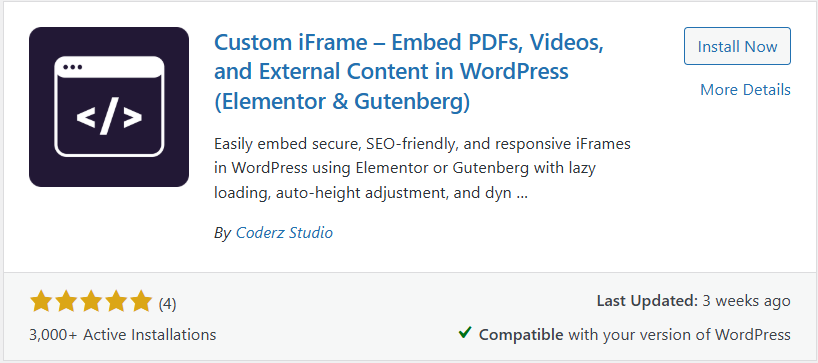
The easiest way to do this is with the Custom iFrame plugin. You only paste your booking link, and the plugin handles the embed for you. You can make the calendar responsive, adjust the height, and style it to match your site.
Step by Step Guide: Add Booking Calendar in WordPress
- Open Google Calendar, Calendly, or your preferred booking tool.
- Create your booking calendar and copy the shareable link.
- Go to your WordPress dashboard and open Plugins, then Add New.
- Search for Custom iFrame Plugin, then install and activate it.
- Open the page editor like Elementor and add the Custom iFrame widget.
- In the Content tab, find the Source field and paste your calendar link.
- Set the height and adjust padding, width, borders, and background in the Style tab.
- Publish or update the page and your booking calendar will appear live on your site.
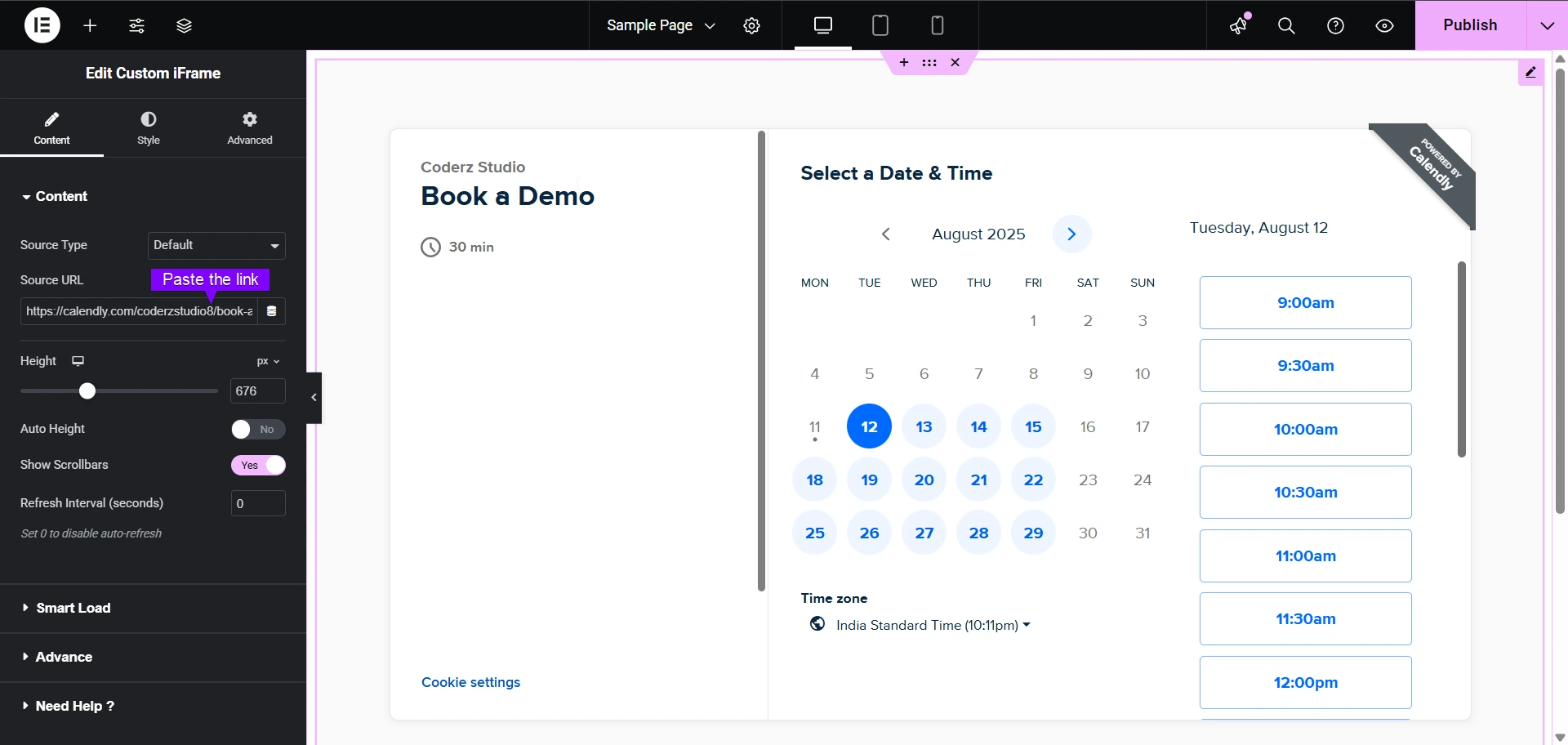
This method works well when you need a quick and clean booking solution without installing a full booking system.
Now, if you want a complete booking setup inside WordPress with services, schedules, and payments, let’s move to the second method using the BookingPress plugin.
Add Booking Calendar in WordPress using the BookingPress Plugin
If you want to set up your booking system inside WordPress, BookingPress is a good choice. It gives you a full booking solution with services, staff, time slots, payments, and reminders.
Step by Step Guide: How to Set Up BookingPress in WordPress
- Download the BookingPress plugin from their official website.
- Go to WordPress Dashboard > Plugins > Add New > Upload Plugin.
- Upload the zip file, then install and activate the plugin.
- Open BookingPress in your WordPress menu to start the setup.
- Complete the basic setup like time zone, currency, and business details.
- Add your services and set duration and price.
- Add staff members and assign services to them.
- Set working hours and create your available time slots.
- Enable payments or notifications if you want these features.
- Add the booking calendar to any page using the BookingPress shortcode or block and publish the page.
BookingPress also gives you extra features that make managing bookings easy. You can set custom schedules, offer group bookings, accept online payments, send email or SMS reminders, and manage appointments from a clear dashboard.
This tool help you run your booking system without using any outside platform. It keeps everything inside WordPress and gives you full control.
This completes the second method. Now let’s wrap everything up and help you choose the right option for your site.
Conclusion
Both methods work well, and the right choice depends on how you want to manage bookings.
If you prefer using platforms like Google Calendar, Calendly, or SimplyBook, then embedding them with the Custom iFrame plugin is the fastest and easiest way. You only need a link. The plugin makes the calendar responsive, clean, and perfectly styled to match your site. It is simple, quick, and ideal for beginners.
If you want a full booking system inside WordPress, then BookingPress is the better option. It gives you services, staff, time slots, payments, and reminders all in one place. It works great for businesses that need a complete booking setup without using outside tools.
Both methods help you add a booking calendar easily. Now you can choose the one that fits your workflow and business needs.
If this guide helped you, feel free to share your thoughts in the comments. Tell us which method you are planning to use.
