
Table of Contents
With Custom iFrame plugin, you can embed Google My Map in Elementor easily. Display custom maps, locations, or travel routes directly on your WordPress site.
Follow these steps to display a Google My Maps on your website.
Not a fan of reading? No worries! we’ve got a video tutorial for you. 📺

Not a video person? No worries — scroll on for the full step-by-step guide.
Step 1: Get Your Google My Maps Link
- Open Google My Maps (https://mymaps.google.com/).
- Create a new custom map or open your pre-existed map.
- Copy the custom map URL.
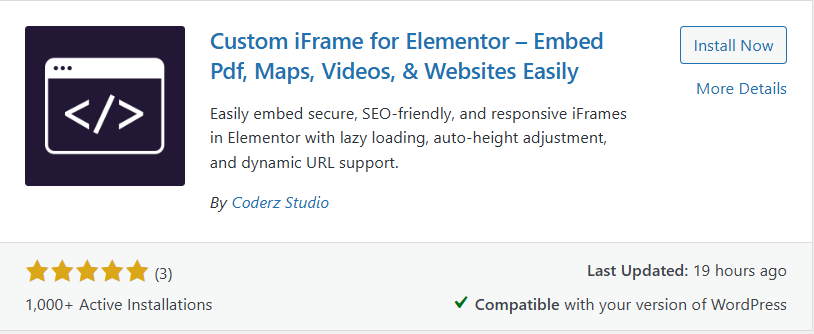
Step 2: Install the Custom iFrame Plugin
- Install and Activate ‘Custom iFrame Plugin by Coderz Studio‘
- Open your page in Elementor Editor.
- Search for Custom iFrame and Drag and drop the Widget onto editor area.
Step 3: Embed Google My Map in Elementor
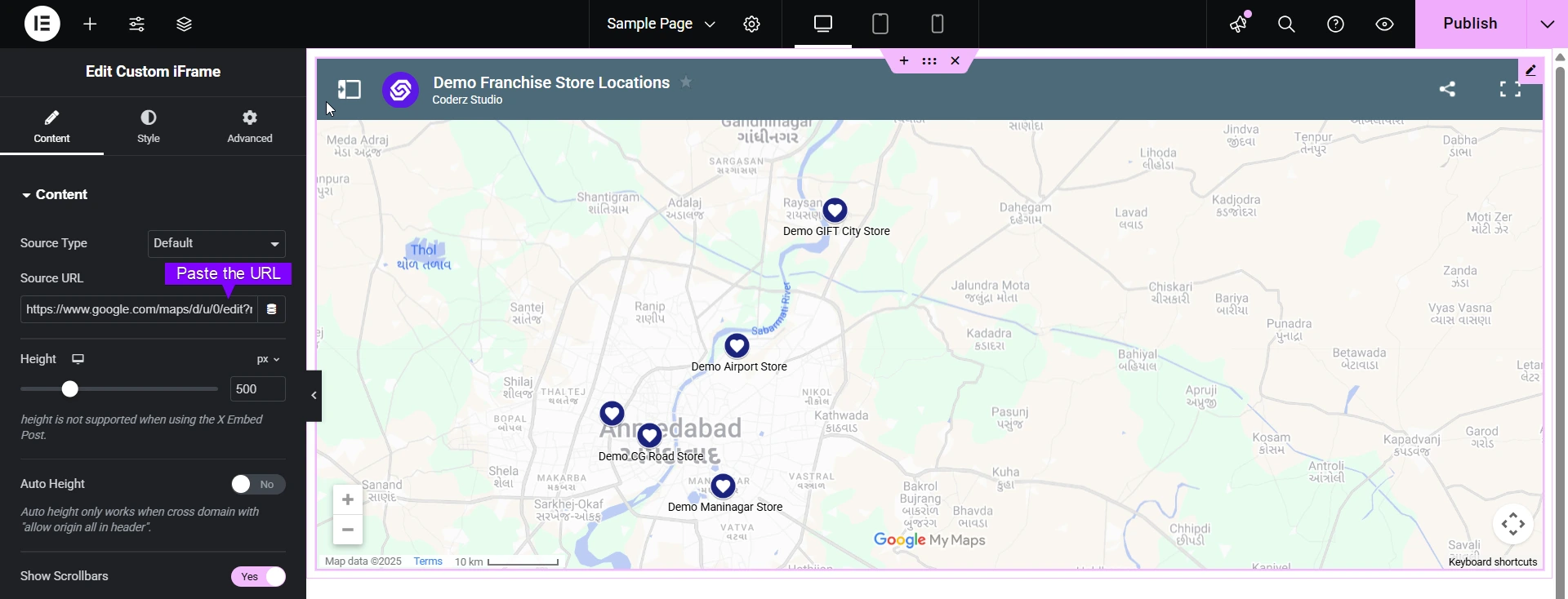
- Go to Content section of Custom iFrame widget.
- Paste your map URL into Source URL field.
Step 4: Customize & Configure Settings
For styling, smart loading, and advanced options, refer to our Complete Custom iFrame Widget Guide to fine-tune your map embed.
Step 5: Save & Publish
Click Update, and the custom Google My Map is now live on your page!
Make navigation simple. Embed your custom Google My Map in Elementor and help your visitors explore places right from your website!
