
With Custom iFrame, you can embed Notion page in Elementor easily. Share docs, roadmaps, knowledge bases, or public notes directly on your WordPress site.
Quick Summary
Step-by-step guide to Embed Notion page in Elementor.
- Open your Notion page and publish it from the Share settings.
- Click Embed this page and copy the iframe
srcURL. - Install and activate the Custom iFrame plugin.
- Edit your page with Elementor.
- Drag the Custom iFrame widget into the editor.
- Paste the Notion iframe URL into the Source field.
Your Notion page is now embedded in Elementor and will stay updated automatically.
Step 1: Get the Notion Page Embed Link
First, make your Notion page embeddable.
- Open your Notion page
- Click the Share button (top right)
- Go to the Publish tab → Click on ‘Publish’ button
- Click Embed this page → Copy the iframe
srcURL from the embed code
This is the link we’ll use in Elementor. Make sure the page is published. Private pages won’t load inside an iframe.
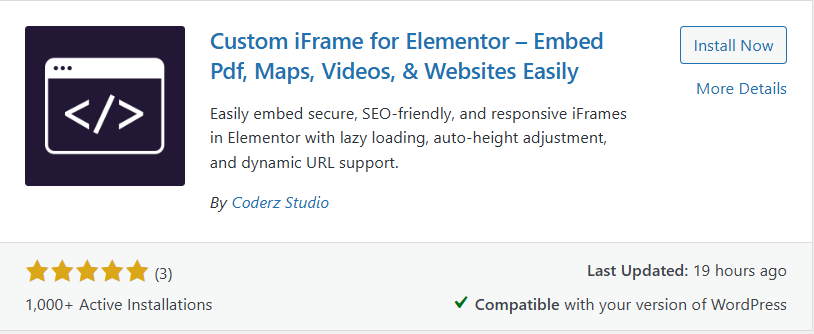
Step 2: Install Custom iFrame Plugin.
- Install and Activate ‘Custom iFrame‘.
- Open your page in Elementor Editor.
- Search for Custom iFrame and Drag and drop the Widget onto editor area.
Step 3: Embed the Notion Page in Elementor
This is the easiest part.
- Select the Custom iFrame widget
- Go to the Content tab
- In the Source field, paste the Notion iframe URL you copied earlier
That’s it.
Your Notion page will appear instantly inside Elementor.
Step 4: Customize & Configure Settings
Once the page is embedded, you can fine-tune everything.
Layout and Behavior
- Adjust iframe height and width
- Enable smart loading for better performance
- Control scrolling behavior
Styling
- Add background styles
- Customize borders and spacing
- Match the embed with your site design
For detailed controls:
- Refer to our Complete Custom iFrame Widget Guide for loading and advanced options
- Use our Style Custom iFrame Guide to adjust layout, borders, and visuals
This helps you make the embed look native, not pasted.
Step 5: Save & Publish
Click Update, and your Notion page is now live on your WordPress site!
This guide showed you how to embed Notion page in Elementor using the Custom iFrame plugin. From publishing your Notion page to embedding and styling it in Elementor, the setup is quick and flexible.
Use it to display live docs, knowledge bases, or dashboards while keeping everything updated directly from Notion.
