
Table of Contents
With the Custom iFrame plugin, you can easily embed Spotify audio in Elementor WordPress site without any API key. Follow these steps to display a Spotify audios like music, song and podcast on your website.
Not a fan of reading? No worries — we’ve got a video tutorial for you. 📺
Not a video person? No worries — scroll on for the full step-by-step guide.
Step 1: Get the Spotify Audio Link
- Open Spotify (https://open.spotify.com/).
- Navigate to the audio you want to embed.
- Click on the ‘three dot‘ (ellipsis) button of the audio > Hover to the ‘Share’ option > Click on ‘Copy Song Link‘ option.
PS: For podcasts, it could be ‘Copy Episode Link‘ option.
Step 2: Add the Custom iFrame Widget
- Install and Activate Custom iFrame Plugin
- Open your page in Elementor Editor.
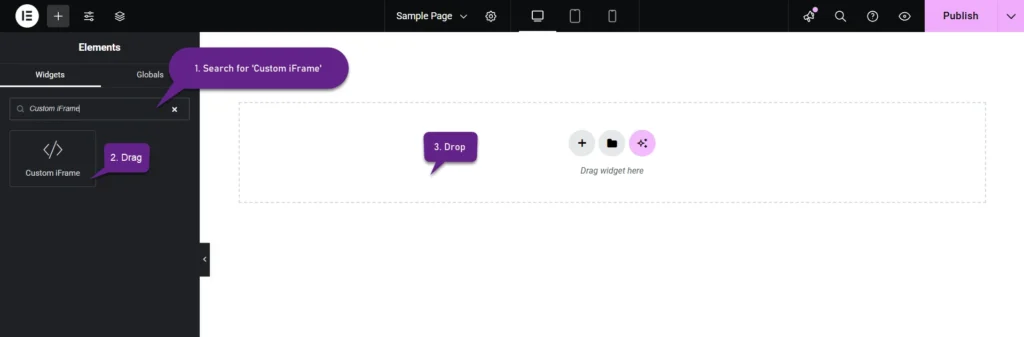
- Drag and drop the Custom iFrame Widget onto your page.
Step 3: Embed Spotify Audio in Elementor
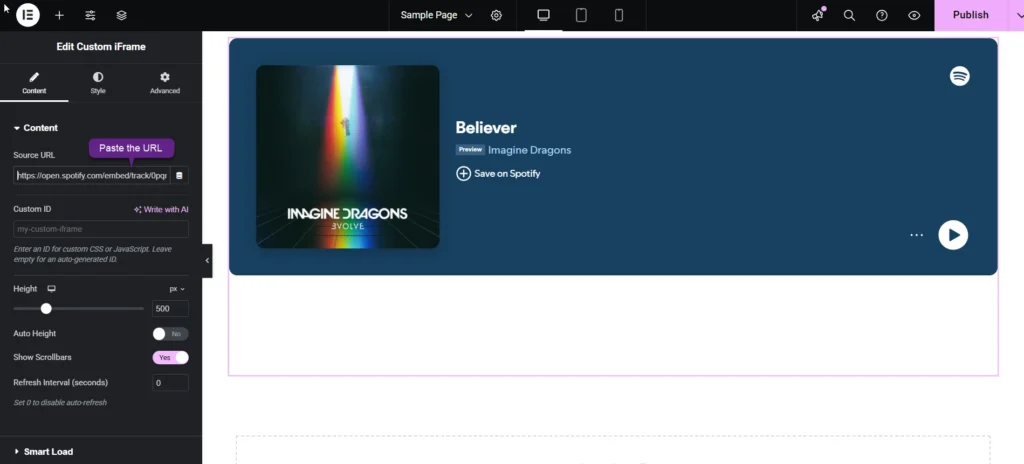
- Go to Content
- Paste the Spotify audio URL into Source URL field.
Step 4: Customize & Configure Settings
For styling, smart loading, and advanced options, refer to our Complete Custom iFrame Widget Guide to fine-tune your embed.
Step 5: Save & Publish
Click Update, and your interactive YouTube video is now live on your page!
Embed Spotify audio in Elementor via a simple way with the Custom iFrame plugin. This keeps your site engaging and informative.
