
Table of Contents
With the Custom iFrame plugin, you can easily embed Vimeo video in Elementor WordPress site without any API key. Follow these steps to display a Vimeo video on your website.
Not a fan of reading? No worries — we’ve got a video tutorial for you. 📺
Not a video person? No worries — scroll on for the full step-by-step guide.
Step 1: Get the Vimeo Video Link
- Open Vimeo (https://vimeo.com/) > Login/Register to Vimeo.
- Upload the video you want to embed or navigate to it in the library.
- Click on the ‘Three Dot‘ icon of the video > Click on ‘Copy link’ option.
Step 2: Add the Custom iFrame Widget
- Install and Activate Custom iFrame Plugin
- Open your page in Elementor Editor.
- Drag and drop the Custom iFrame Widget onto your page.
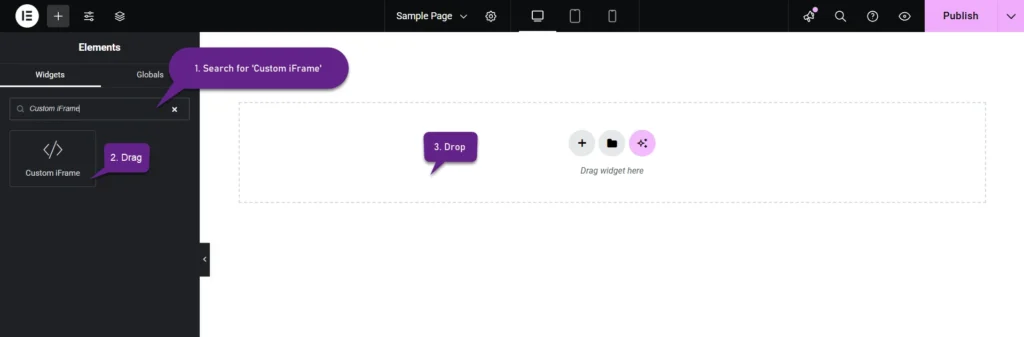
Step 3: Embed Vimeo Video in Elementor
- Go to Content
- Paste the URL into Source URL field.
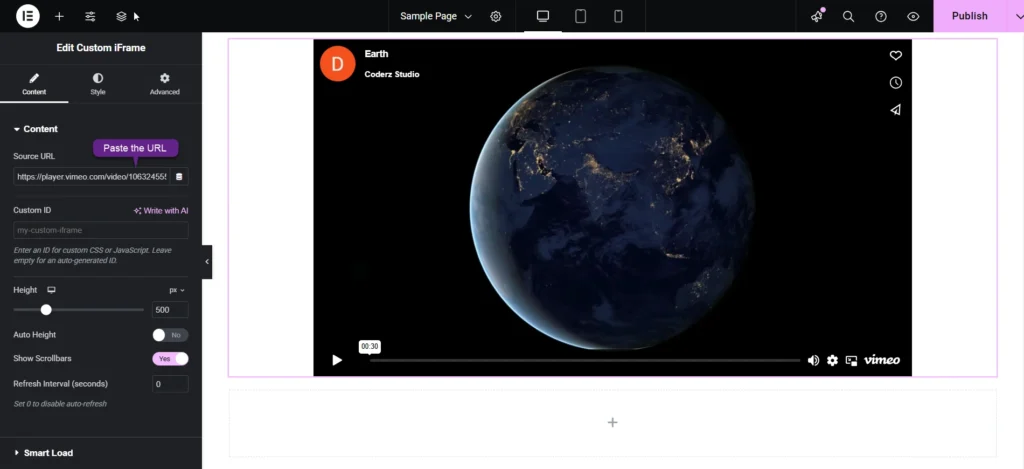
Step 4: Customize & Configure Settings
For styling, smart loading, and advanced options, refer to our Complete Custom iFrame Widget Guide to fine-tune your embed.
Step 5: Save & Publish
Click Update, and your Vimeo video is now live on your page!
You’re all set! WitClick Update, and your Vimeo video is now live on your page!
With Custom iFrame, you can embed Vimeo video in Elementor easily, keeping your site visually stunning and engaging
