
With Custom iFrame, you can embed Google Form in WordPress and display live, fully functional forms directly on any page or post of your WordPress site.
Note: Using Elementor? Follow our How to Embed Google Form in Elementor guide instead.
Quick Summary
Step-by-step guide to embed Google Form in WordPress?
1. Get the Google Form responder link.
2. Install and activate the Custom iFrame plugin.
3. Open your page in the Gutenberg block editor and add the Custom iFrame block.
4. Paste the Google Form URL into the Source field.
5. Adjust settings and customize the display.
6. Save and publish your page.
Step 1: Get the Google Form Embed Link
- Open the Google Form you want to embed.
- Click the Publish button in the top right corner. A Publish Form popup will open.
- Click Publish inside the popup. Then click the Published button that appears.
- Click Copy Responder Link.
Your Google Form is now published and the link is copied. This is the URL you will paste into the Custom iFrame block.
Step 2: Install the Custom iFrame Plugin and Add the Block
- Go to your WordPress dashboard.
- Navigate to Plugins, then Add New.
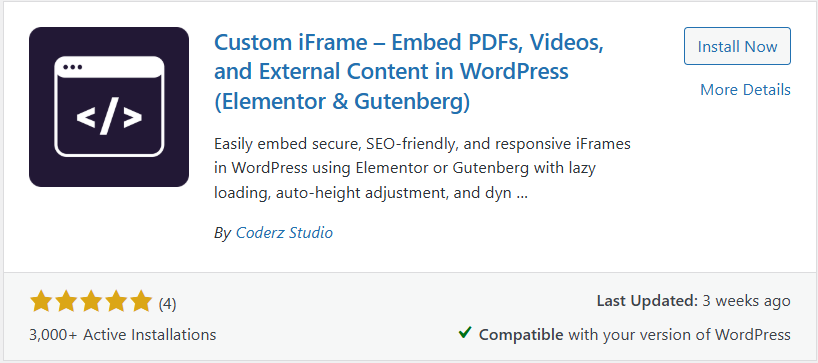
- Search for “Custom iFrame by Coderz Studio” and press enter.
- Click Install Now, then click Activate.
- Open your page in the Gutenberg block editor.
- Click the Add Block button and search for Custom iFrame.
- Click the Custom iFrame block to add it to the page.
Step 3: Embed Google Form in WordPress
- Select the Custom iFrame block on your page.
- In the Source field, paste the Google Form URL you copied in Step 1.
Your Google Form will appear inside the Gutenberg editor immediately as a live iframe preview.
Step 4: Adjust Settings
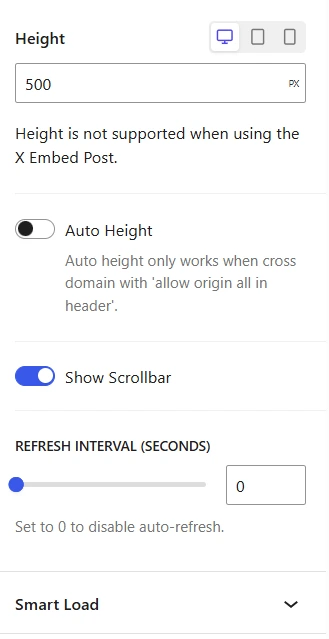
Once the form is embedded, you can configure the display settings in the Gutenberg block panel.
Height: Set the iframe height so the full form is visible without unnecessary blank space below it.
Scroll Bar: Enable the scrollbar if your form is long and you prefer to keep the iframe height fixed.
Refresh Interval: Set how often the iframe reloads. Useful if your form questions are updated frequently.
Smart Load: Enable lazy loading so the Google Form iframe loads only when it enters the visitor’s viewport. This helps keep your page performance strong.
Want to add a custom watermark, device frame, or full screen button? Check out the advanced options in our Complete Custom iFrame for WordPress Guide.
Update or Publish the page. Your Google Form is now live on your WordPress site.
This guide showed you how to embed Google Form in WordPress using the Custom iFrame plugin. From getting the responder link to configuring the iframe and publishing, your form is ready to collect responses directly from your WordPress page.
