
Easy Guide to Embed Google Maps in WordPress


Key Takeaways
How can you embed Google Maps in WordPress the easy way?
You can add Google Maps in two simple ways. You can paste the map iframe code inside an HTML block. Or you can use a plugin like Custom iFrame by Coderz Studio. With the plugin, you only need the map link. You add the link in the widget and the map shows on your page.
The plugin method is easier for most users. It gives you options to make the map responsive, adjust the layout, and style it in your own way. If you want a simple and fast setup, go with the Custom iFrame plugin.
Adding a Google Map to your WordPress site is important if you want visitors to find your location easily. It helps users see where your store, office, or service area is in real time. If your business has multiple locations, you can also use Google My Maps to show all your spots with clear pins on one map. This makes your site more helpful and improves trust.
Now let’s see how you can embed Google Maps or Google My Maps on your WordPress site in a simple way. You can do it in two ways. You can use the Custom iFrame plugin, or you can add the map iframe code in an HTML block. Both work, but the plugin gives you more control and makes the process easier.
So let’s start with the first method and walk through it step by step.
How to Embed Google Map in WordPress using Plugin?
We will use the Custom iFrame plugin to embed the Google Map in WordPress. This plugin gives you full control to make the map responsive, set the height, and style it the way you want.
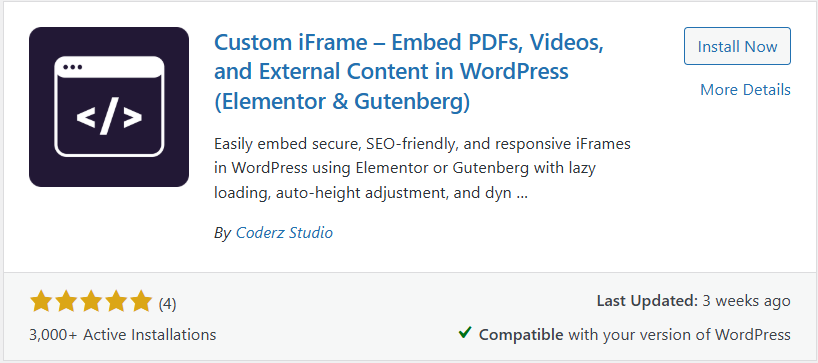
Custom iFrame also supports more than 100 embed sources and has a 5 star rating on WordPress, which makes it a trusted choice for beginners and advanced users.
Follow these simple steps to add a Google Map with the Custom iFrame plugin. No code is needed.
- Install and activate Custom iFrame from your WordPress plugins page.
- Open Google Maps and find the location you want to embed.
- Click Share, then copy the map link.
- Open the page you want to edit in Elementor or the Gutenberg editor.
- Add the Custom iFrame widget (Elementor) to your page.
- Paste the map link into the Source URL field.
- Set the height for desktop, tablet, and mobile so the map fits all screens.
- Go to the Style tab and adjust padding, width and set border for a clean look.
- Preview the page on desktop and mobile to check responsiveness.
- Click Update or Publish. Test the live page to confirm the map loads and pans correctly.
That is all you need to embed a Google Map using the Custom iFrame plugin. It is simple, quick, and gives you more control over how the map looks on your site.
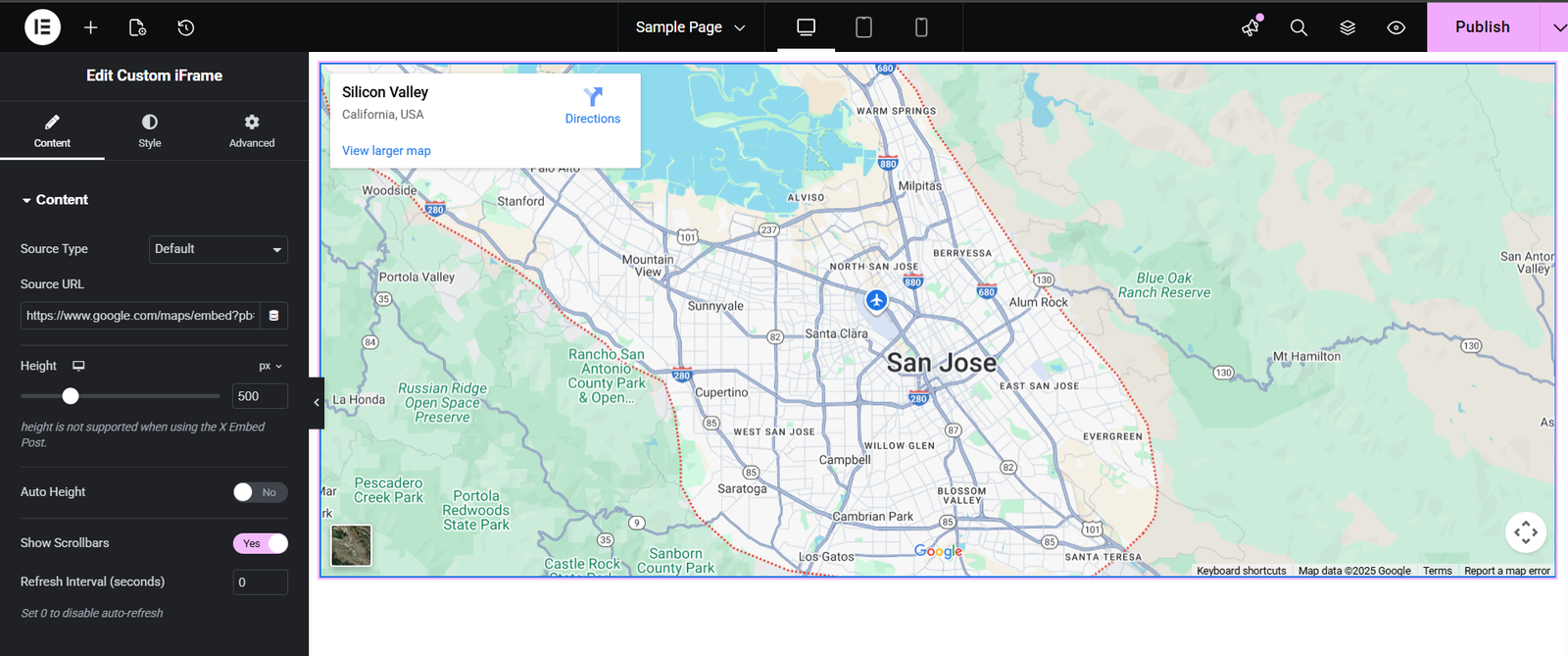
Now let’s look at the second method. You can also embed a Google Map using the HTML widget if you prefer to paste the iframe code manually.
How to Embed Google Map in WordPress using HTML Widget?
You can also add a Google Map by using the HTML widget in Elementor or the HTML block in Gutenberg. This method works well if you want to paste the iframe code directly. It gives you a simple way to add the map, but you will not get styling or responsive controls like you get with a plugin.
Here is the step by step guide:
- Open Google Maps and search for the location you want to embed.
- Click Share and select Embed a map.
- Copy the full iframe code from the box.
- Go to your WordPress page and open it in Elementor or Gutenberg.
- Add an HTML widget in Elementor or an HTML block in Gutenberg.
- Paste the entire iframe code inside the box.
- Set the width and height inside the code if needed.
- Preview the page to see how the map looks.
- Adjust the container or section settings to improve spacing.
- Publish or update the page once everything looks right.
This method is fine for quick embeds, but it needs manual edits for responsive behavior. If you want easy controls and a smooth setup, the plugin method is still the better choice.
Can I embed Google Maps in WordPress without a Google API key?
Yes. You can embed Google Maps without an API key by using the share or embed option inside Google Maps. You only need the map link or iframe code.
Does Google Maps slow down my WordPress site?
It can, but only if the map loads too many elements. Using a lightweight embed method or a plugin like Custom iFrame helps keep the loading smooth.
Can I embed multiple Google Maps on one page?
Yes. You can add more than one map on the same page. Just repeat the same embed steps for each location.
How do I embed Google My Maps instead of a normal map?
Open Google My Maps, select your custom map, click Share or Embed, and copy the iframe code or map link. Then paste it into the plugin or HTML widget.
Can I change the size of the Google Map after embedding it?
Yes. You can adjust the size by editing the height and width in the HTML code or by using responsive controls in the Custom iFrame plugin.
Conclusion
Embedding Google Maps in WordPress is easy once you know the right method. You can paste the iframe code manually, or you can use the Custom iFrame plugin for faster setup and better control. The plugin makes your map responsive, clean, and easy to manage, which is helpful if you update your site often.
If you want the simplest way to add maps, Google My Maps, or any other embed in WordPress, the Custom iFrame plugin is the best choice. Try it on your site and see the difference.
And if this guide helped you, feel free to share your thoughts or ask a question in the comments. I would love to hear how you plan to use maps on your site.
