
Here are 3 Simple & Working Methods to Embed a Website in Elementor (2026 Guide)


Embedding a website inside an Elementor page is simple once you know the right method. You can embed website in Elementor using Elementor’s HTML widget or a dedicated plugin like Custom iFrame for better control, responsive design, and cleaner output.
This guide walks you through all methods and explains the easiest way to embed a full website inside Elementor.
Can You Embed Website in Elementor?
Yes. Elementor supports website embedding through an iframe. An iframe lets you load one website inside another, which is useful for showing external tools, dashboards, forms, maps, and complete web pages.
However, Elementor doesn’t include a dedicated “embed website” widget, but you can still embed any webpage using HTML or using the #1 embedding plugin called custom iFrame.
Method 1: Embed a Website in Elementor Using Custom iFrame
Custom iFrame is the most reliable and flexible way to embed any website inside Elementor. It adds a dedicated iframe widget with responsive controls, auto-height, lazy loading, and complete design flexibility.
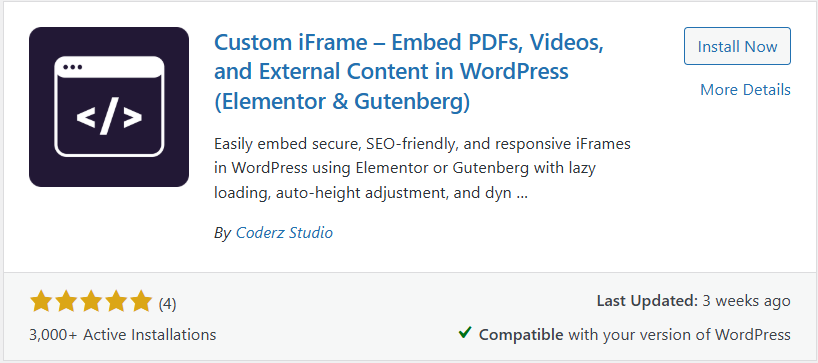
How to Embed a Website using Custom iFrame
- Install and activate the Custom iFrame plugin.
- Open your page in Elementor.
- Search for the “Custom iFrame” widget.
- Drag it into your layout.
- Enter the URL of the website you want to embed.
- Adjust height, responsiveness, borders, and spacing as needed.
- Show/hide scrollbar, etc & Update your page.
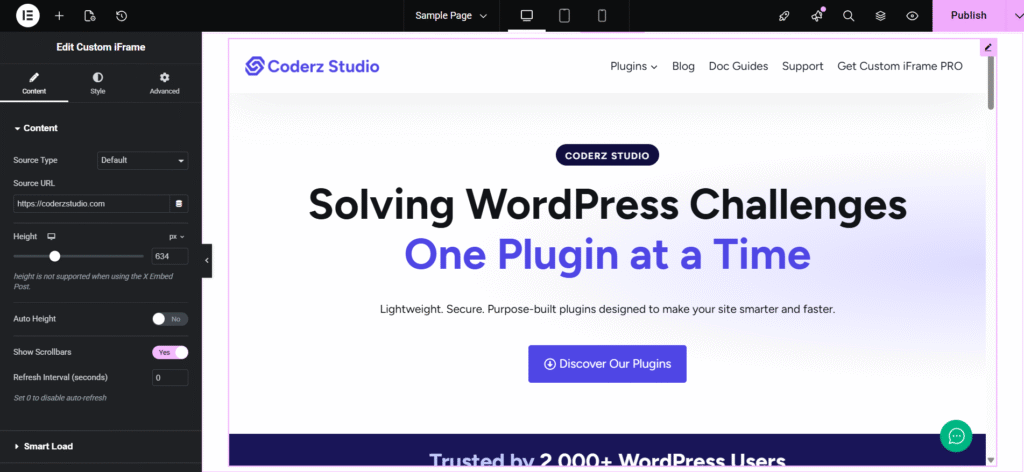
That’s it.
Method 2: Embed a Website Using an Elementor Embed Plugin
Plugins like EmbedPress allow you to embed content simply by pasting a URL. They work well for videos, posts, and social media embeds.
Pros
- Easy to use
- Works for supported platforms
Limitations
- Limited control for full website embedding
- No advanced styling or responsive settings
- Not ideal for heavy or interactive webpages
If your goal is to embed full websites, you may still face restrictions.
Method 3: Embed a Website Using Elementor’s HTML Widget
This is the default method available in Elementor and works for basic embeds.
Steps
- Open your page and click “Edit with Elementor.”
- Search for the HTML widget.
- Drag it into your section.
- Now you need the embed code for your website. You can create it using our free tool: Embed Code Generator
- In the tool, just paste your website link, choose the styling options you want, and the tool will generate the embed code for you. Copy that code and use it in Elementor.
- Paste that code inside the HTML widget.
- Update and preview your page.
Pros
- No additional plugin required
- Works with simple iframe-based embeds
Limitations
- No auto-height adjustment
- No lazy loading
- No design control
- Can break on mobile
- Doesn’t work if the external website blocks iframe loading
This method is fine for quick embeds, but not ideal for modern pages or long content.
5 Key Benefits of Using Custom iFrame
Why Some Websites Don’t Load in Elementor?
Some websites block iframe embedding for security reasons. If the site uses X-Frame-Options or similar policies, no plugin or HTML trick can bypass it.
Common examples include:
- Banking websites
- Some SaaS dashboards
- Payment gateways
- News websites with strict policies
If the site blocks iframe embedding, you may need to use a direct link or an API-based integration.
Types of Websites You Can Embed in Elementor
Most websites that allow iframe rendering can be embedded, including:
- Web apps and tools
- Client dashboards
- Maps and booking platforms
- Online forms
- Videos and media players
- Portfolio sites
- Documentation pages
- Demo environments
- Other WordPress websites
If the website provides an embed code or works inside an iframe, Custom iFrame can render it cleanly inside Elementor.
Common Use Cases for Embedding a Website in Elementor
Does Embedding a Website Affect SEO?
Embedding a website does not directly affect your SEO. Google does not index content inside an iframe, so ensure you write useful content around the embed. Add headings, text, FAQs, and internal links to keep the page valuable for search engines.
Troubleshooting: When a Website Refuses to Load
If the embedded website does not appear, shows a blank screen, or displays an error, check the following:
- Verify that the website allows embedding: Some sites block iframe usage completely.
- Use HTTPS: Mixing HTTP and HTTPS can break embeds.
- Adjust height settings: Very small heights can cause incomplete rendering.
- Try Custom iFrame: Its cleaner structure handles allowed embeds more reliably.
FAQs | Embedding website into Elementor
How do I embed an iframe in Elementor?
Drag the HTML widget into your page and paste an iframe code or simply use Custom iFrame & put your URL in the source. Update the page to preview it.
How do I embed a website inside another website?
You can use an iframe. This can be done manually through HTML or using a plugin like Custom iFrame.
How do I put HTML in Elementor?
Use the HTML widget and place your code inside it.
Conclusion
You can embed website in Elementor using the HTML widget, an embed plugin, or a dedicated iframe widget. While manual HTML works for simple cases, the Custom iFrame plugin gives you better control, responsive design, lazy loading, and a smoother Elementor experience.
If you want to embed any website with clean styling and predictable results, Custom iFrame is the easiest and most reliable method.
