
Best Free PDF Viewer in Elementor: Best Plugin to Use!


PDFs play a big role on many websites. You can share guides, brochures, reports, catalogs, menus, or documentation using PDFs.
When you show PDFs directly on a page, visitors do not need to download files first. This improves the reading experience and keeps users on your site longer.
If you are looking for a Free PDF Viewer in Elementor, you are in the right place. In this guide, you will learn the easiest way to display PDFs in Elementor using a free plugin that gives you real control.
Quick Summary
What is the best free PDF viewer for Elementor?
The Custom iFrame plugin is the best free pdf viewer for Elementor. It gives you more features than most free plugins. You can control the toolbar, enable or disable print and download, and manage zoom settings. It supports PDF files and PDF URLs. You get styling options, height controls, and responsive settings. You can also enable lazy loading to improve site performance.
That is why Custom iFrame works as the best free PDF viewer in Elementor.
Free PDF Viewer in Elementor: Custom iFrame
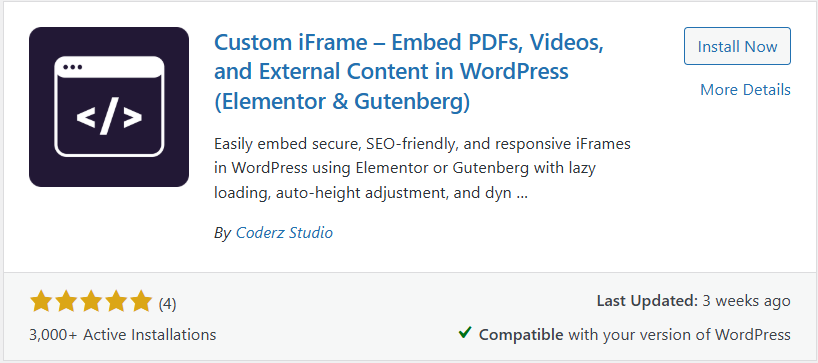
Custom iFrame is a flexible embedding plugin for WordPress. It works smoothly with Elementor and the block editor.
The plugin lets you embed PDFs without writing any code. You only need to upload a file or paste a PDF URL.
What makes Custom iFrame stand out
- Supports PDF upload and external PDF URLs
- Full control over PDF toolbar options
- Enable or disable print, download, and copy text
- Zoom, scroll, and page spread controls
- Responsive height settings for desktop, tablet, and mobile
- Styling options to match your site design
- Lazy load support for better performance
All these features are available in the Custom iFrame free version. That makes Custom iFrame a strong choice for Elementor users to show PDFs in their WordPress site.
What Real Users Say About Custom iFrame
Before moving to the setup steps, it helps to see how this plugin performs in real sites.
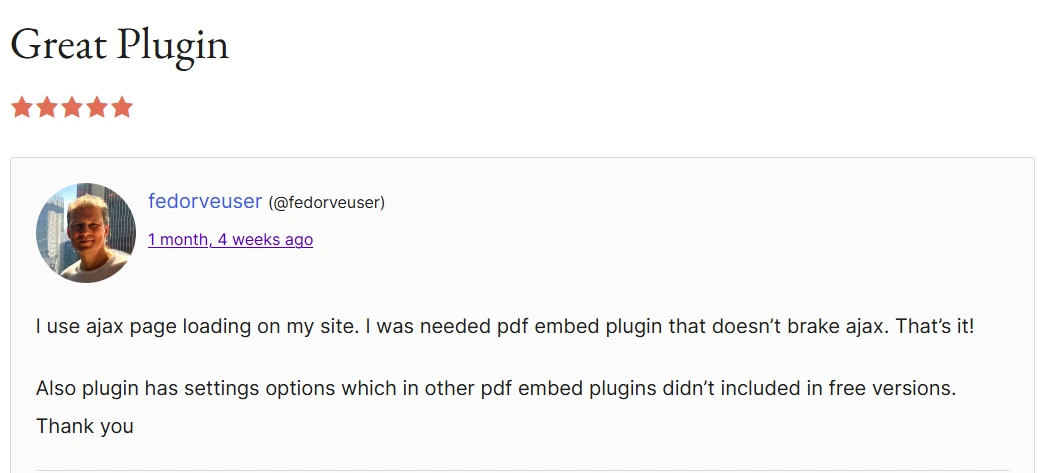
Below is a real 5-star review from the WordPress plugin directory. The user highlights two important points. First, Custom iFrame works smoothly with AJAX page loading, which often breaks PDF embeds in other plugins. Second, many useful PDF embed options are available for free, while other plugins lock them behind paid plans.
This kind of feedback shows that Custom iFrame is not just feature rich. It is stable, reliable, and built for real WordPress use cases.
👉 Check the review screenshot below for full context.
How to Show PDF in Elementor With Custom iFrame
You can add a PDF to Elementor in a few simple steps.
Step by step guide
- Install and activate the Custom iFrame plugin
- Open the page in the Elementor editor
- Search for the Custom iFrame widget
- Drag the widget into your layout
- Upload your PDF file or paste the PDF URL
- Set the height of the PDF viewer
- Adjust toolbar and display settings
- Enable or disable print and download options
- Style the viewer to match your design
- Publish or update the page
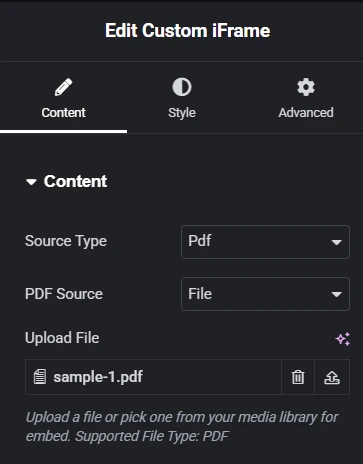
Your PDF is now visible on the page.
Conclusion
If you want a simple and reliable Free PDF Viewer in Elementor, Custom iFrame is a great choice. It gives you strong features without forcing you to upgrade.
You get control, flexibility, and clean design in one plugin. It works well for blogs, business sites, and documentation pages.
Try it on your site and see the difference. If this guide helped you, leave a comment and share your experience.
