
How to Lazy Load iFrame in Elementor? Easy Way!


If you want to lazy load iframe in Elementor, you are in the right place.
Lazy loading helps your site load faster. It reduces initial page weight. It improves user experience and Core Web Vitals.
Many Elementor pages use iFrames to show videos, maps, PDFs, forms, and external websites. These embeds load heavy resources. If everything loads at once, your page becomes slow.
Lazy loading fixes this problem. It loads the iframe only when users scroll near it. This saves bandwidth. It improves speed. It helps SEO.
In this guide, you will learn how to lazy load iframe in Elementor the easy way. We will use a simple and reliable plugin that does the work for you.
Quick Summary
How to Lazy Load iframe in Elementor?
To lazy load iframe in Elementor, use the Custom iFrame plugin. It supports videos, audio, PDFs, maps, social posts, and external websites. It works with more than 100 embed sources. Custom iFrame includes a Smart Load feature. You only need to enable the Lazy Load option. That is it. Any iframe content will load only when needed. This method works without code. It keeps your Elementor page fast and clean.
Before we go deeper, it helps to understand what an iframe is and how Elementor handles it. This makes the next steps easier to follow.
What Is an iFrame and How It Works Inside Elementor
An iframe is a way to show content from another website inside your page. It works like a window. The content loads from an external source but appears on your site. You can use an iframe to show YouTube videos. You can embed Google Maps. You can display PDFs, forms, dashboards, or full web pages.
If you want a deep explanation, check our complete guide here: What is an iFrame? The Ultimate iFrame Guide.
Elementor does not block iframe usage. You can add iframe content using HTML widgets or plugins. Using raw HTML works, but it has limits. You must handle sizing, responsiveness, and performance yourself.
This is where a plugin like Custom iFrame helps. It manages iframe rendering inside Elementor. It adds controls for size, style, and loading behavior.
Now that you know what an iframe is, let us talk about lazy loading and why it matters.
What Does Lazy Loading Mean for iFrames
Lazy loading means loading content only when it is needed. Instead of loading everything at once, the browser waits. For iframes, this is very important. Videos, maps, and documents are heavy. They slow down page load time.
When lazy loading is enabled, the iframe loads only when users scroll near it. This reduces initial page size.
It improves Largest Contentful Paint and page speed. Lazy loading also helps mobile users. It saves data. It makes scrolling smoother.
Without lazy loading, every iframe loads even if users never see it. That wastes resources. Lazy loading fixes this issue cleanly.
Now let us move to the practical part. This is where you apply everything using Elementor.
How to Lazy Load iFrame in Elementor Using Custom iFrame?
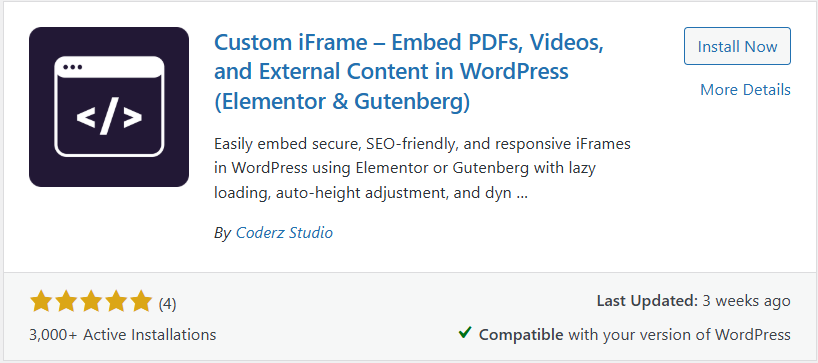
Custom iFrame is a flexible embedding plugin for WordPress. It works smoothly with Elementor and the block editor.
It lets you embed content using just a URL. Custom iFrame includes Lazy Load option. This feature is built for performance.
Step by Step Guide to Lazy Load iFrame in Elementor
- Install and activate Custom iFrame plugin.
- Open the page in Elementor
- Drag the Custom iFrame widget into your layout
- In Source URL, paste the content URL
- Set height and responsive options
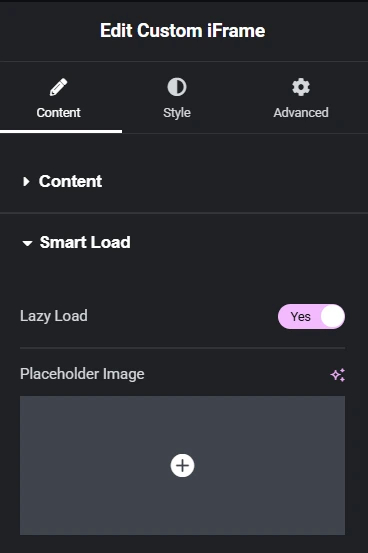
- In Smart Load section, enable the ‘Lazy Load’ switcher.
- You can set a placeholder image.
- Update the page and test it
That is all you need to do. The iframe will now load only when users scroll to it. This works for videos, PDFs, maps, external pages and any kind embedded content.
Custom iFrame also supports device specific height settings. You can control how the iframe behaves on desktop, tablet, and mobile.
Now that you know how to enable lazy loading, let us look at when you should use it and when you should not.
Best Use Cases and Tips for Lazy Loaded iFrames in Elementor
Lazy loading works best in these cases:
- Pages with multiple embedded videos
- Pages with PDFs or documents
- Landing pages with maps or forms
- Long pages with embeds below the fold
It may not be ideal in these cases:
- Hero section videos
- Above the fold embeds
- Critical content that must load instantly
Best Practices
- Use lazy loading for embeds below the fold
- Avoid lazy loading for key hero content
- Always test page load speed after enabling
- Check mobile behavior separately
Common Mistakes to Avoid
- Lazy loading every iframe blindly
- Forgetting mobile height settings
- Using raw HTML embeds without control
Custom iFrame helps avoid these mistakes. It gives visual controls inside Elementor. You can fine tune everything without guessing.
Conclusion
Lazy loading iframe in Elementor is one of the easiest ways to improve site speed. It reduces load time. It improves user experience. It helps SEO.
Custom iFrame makes this process simple. You do not need code. You do not need hacks. You just enable Lazy Load and publish. If you embed videos, PDFs, maps, or external pages, this plugin is a smart choice. It keeps your Elementor pages fast and clean.
Try Custom iFrame and see the difference yourself. If this guide helped you, leave a comment and share how you plan to use lazy loaded iframes on your site.
