
LinkedIn Embed iFrame: Easy Ways to Show Posts in Website


So you want to embed LinkedIn posts on your website. Good choice.
LinkedIn posts help build trust. They show real updates, achievements, and social proof. When visitors see LinkedIn content on your site, it adds credibility and freshness.
You can show the posts on your site using a LinkedIn Embed iFrame. This keeps visitors engaged for longer and lets them view updates without leaving your website.
Quick Summary
LinkedIn lets you embed posts using its own embed code. The default code works, but it gives you limited control over the layout. You often have to guess how the post will look on your site before publishing it.
However, the Embed Code Generator tool by Custom iFrame site solves this problem. It lets you adjust the width, height, border, colors, and styling. You can preview the embed before generating the code. Once ready, copy the code and paste it into your website.
If you use WordPress, the Custom iFrame plugin is the easiest option. You only need the LinkedIn embed link. Paste it into the widget and style it directly in the editor. The plugin also handles responsiveness for you.
What Is an iFrame and Why It Matters
An iFrame is a way to show external content inside your website. It loads content from another website within a frame. This means you can show LinkedIn posts without copying content. The post stays live and updates automatically.
iFrames are widely used for videos, maps, forms, and social posts. They are safe and reliable when used correctly.
If you want a deeper explanation, read our full guide here: What is an iFrame? The Ultimate iFrame Guide.
Now that you understand what an iFrame is and how it works, let’s look at the practical ways to embed LinkedIn posts on your website step by step.
Method 1: Embed LinkedIn Posts Using LinkedIn Embed Code
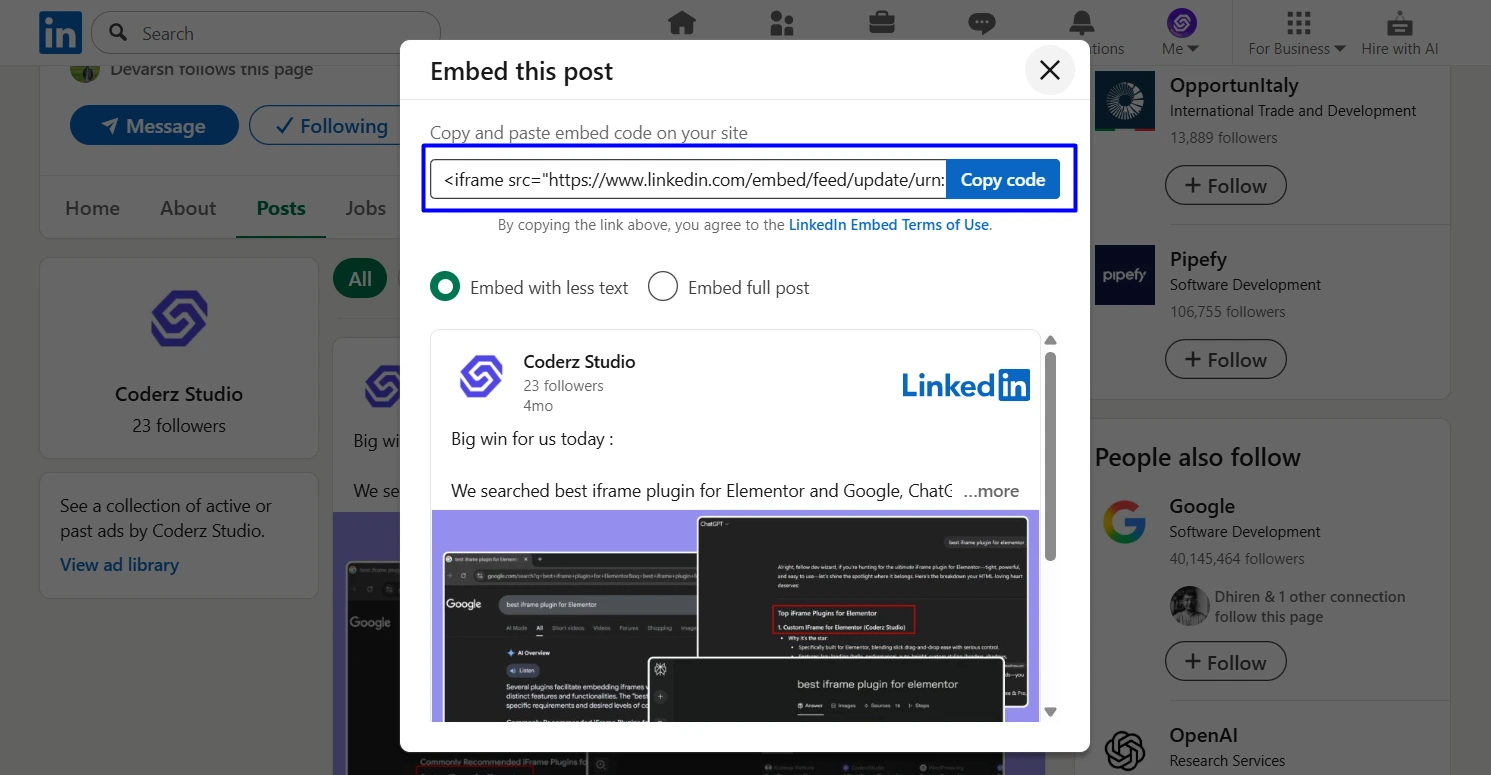
LinkedIn provides its own embed option. This is the most direct method.
Steps
- Open the LinkedIn post you want to embed
- Click the three dots on the post
- Select Embed this post
- Copy the embed code
- Paste the code into your website HTML
Limitations
- Need to update the code manually for styling the Embed
- No proper live preview before publishing
- Styling options are very basic
- Not beginner friendly
This method works, but it is not flexible.
Method 2: Use the Embed Code Generator by Custom iFrame
If you want more control over how your LinkedIn post looks, this method works well.
The Embed Code Generator by Custom iFrame helps you create a clean LinkedIn embed iFrame in seconds. You only need to paste the LinkedIn embed URL into the tool. You can get this URL by copying it from the embed code that LinkedIn generates for the post.
From there, you can adjust the width and height. You can also set borders, enable responsive mode, and choose loading options. Most importantly, you get a live preview before you generate the code.
How This Tool Helps
- You can see exactly how the LinkedIn embed will look
- You control the size before adding it to your site
- You get clean and ready-to-use embed code
- No login or setup is required
This method is perfect for non WordPress websites, static sites, or anyone who wants full control before publishing.
Once the code looks right, copy it and paste it into your website where you want the LinkedIn post to appear.
Method 3: Embed LinkedIn Posts in WordPress Using Custom iFrame Plugin
If your site runs on WordPress, this is the easiest way.
The Custom iFrame plugin lets you embed LinkedIn posts using just a link. No code editing is needed.
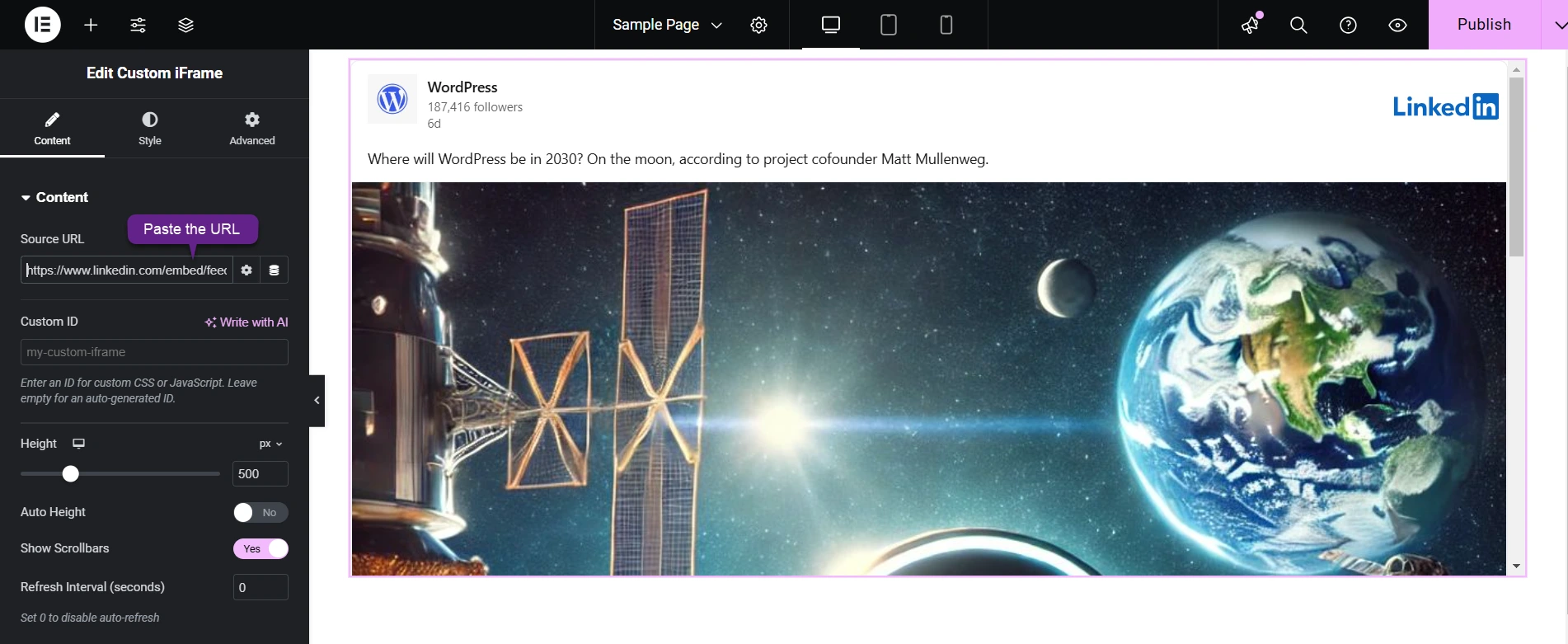
You paste the LinkedIn embed link into the widget.
You style it directly inside the editor.
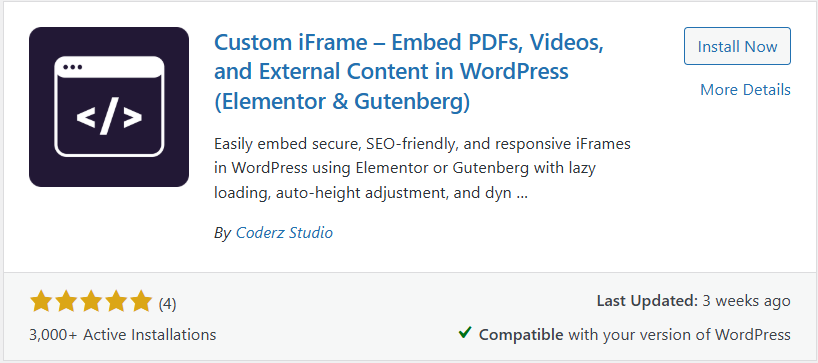
Basic Steps
- Copy the LinkedIn embed link
- Open your page in Elementor
- Drag the Custom iFrame widget
- Paste the link into the Source URL field
- Adjust height and layout
- Publish the page
Your LinkedIn post is now live.
Why Custom iFrame Works Better
- Works smoothly with Elementor
- No manual code handling needed
- Responsive controls are built in
- Live preview inside the editor
- Clean and fast setup
- Lazy load support to improve page speed and performance
- (Pro) Device mockup frames for desktop, tablet, Mac, and mobile views
Conclusion
Embedding LinkedIn posts on your website is a smart move. It adds trust, visibility, and real-time updates.
You can use LinkedIn’s embed code, but it has limits. A free iFrame code generator gives more control and preview.
For WordPress users, the Custom iFrame plugin is the easiest option.
Choose the method that fits your site setup. If you want speed and flexibility, go with the plugin.
If this guide helped you, leave a comment below. Tell us how you plan to use LinkedIn embeds on your website.
