
Best WordPress PDF Watermark Plugin for Easy Protection


Key Takeaways
The best WordPress PDF watermark plugin is Custom iFrame by Coderz Studio. It lets you embed any PDF file or URL in a clean and easy way and then apply a watermark with one click. With Custom iFrame, you can add both text and image watermarks in PDF. You can also control the position, size, typography, color, and opacity. This gives you full freedom to match the watermark with your brand or protection needs.
Custom iFrame keeps everything simple, fast, and easy for beginners while still giving you all the important customization options you expect in a WordPress PDF watermark plugin.
What is the best WordPress PDF watermark plugin?
The best WordPress PDF watermark plugin is Custom iFrame. It gives you a simple and reliable way to embed and watermark PDFs in both Elementor and Gutenberg. You get full control over the PDF viewer and watermark settings without dealing with a heavy or complex plugin.
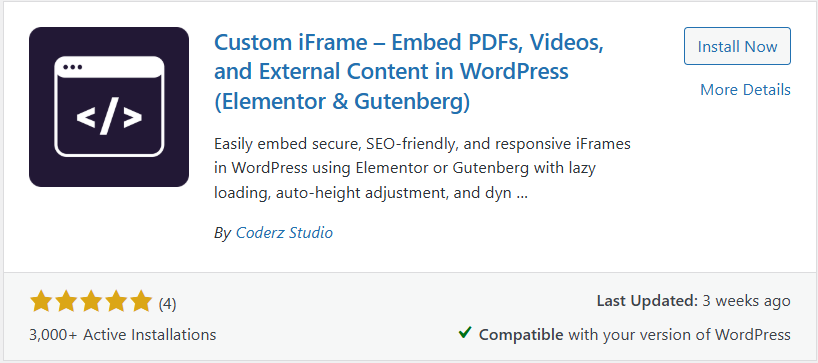
Custom iFrame supports more than 100 embed sources, which makes it useful for many types of content. You can embed PDFs, tools, forms, videos, apps, and websites with a single URL. Everything loads inside a clean and responsive iFrame that you can style to match your site design.
For PDFs, the plugin gives you all the controls you need. You can adjust height, width, zoom, toolbar options, and layout so the PDF fits your brand and page layout. You can set it up in a few clicks, and the plugin still gives you enough controls to adjust the embed exactly the way you want.
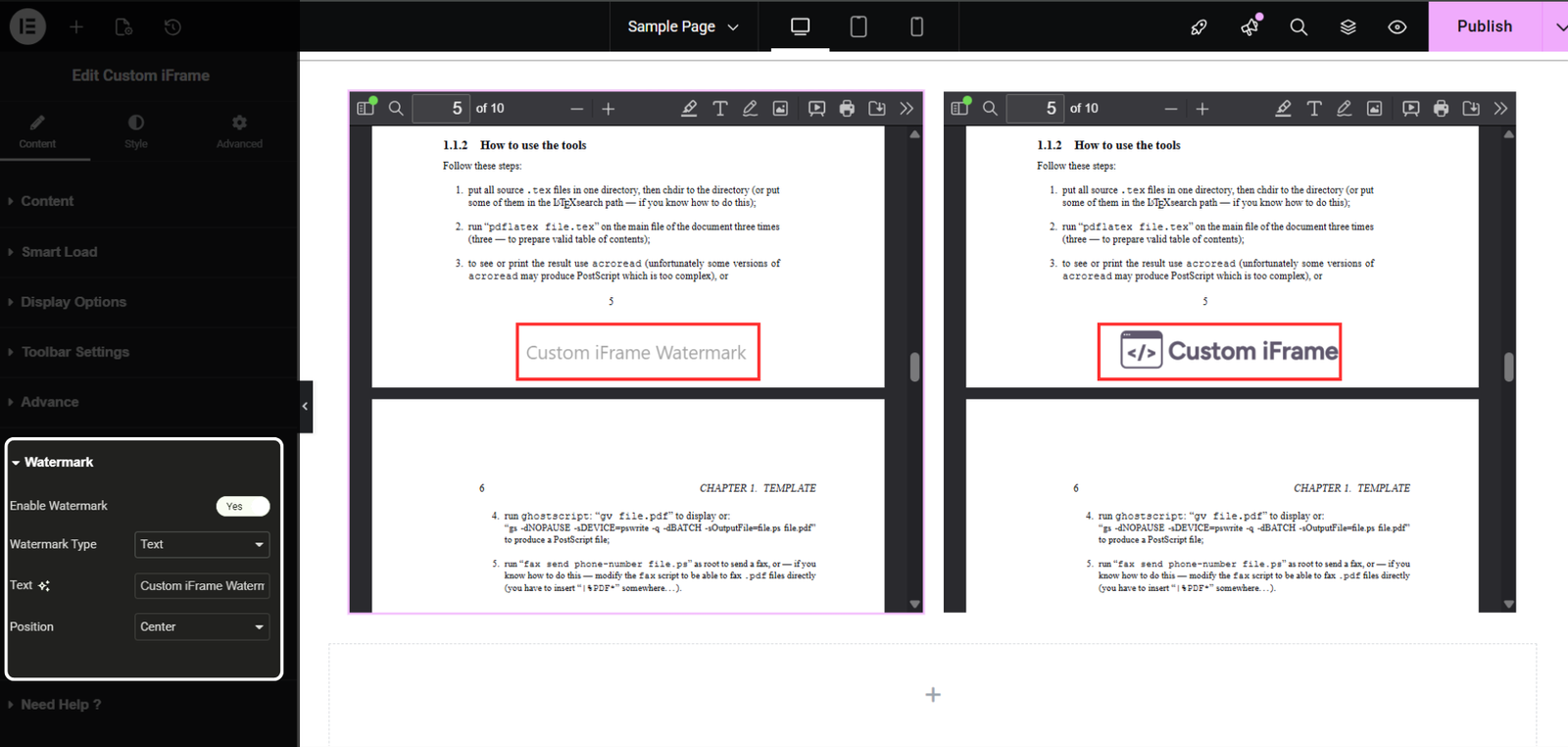
And of course, it includes powerful watermark options. You can add a text watermark or an image watermark to protect your PDF. You can place the watermark anywhere on the page and customize the typography, size, color, spacing, and opacity. This makes it easy to add your brand name or logo in a clean and professional way.
Now that you know why Custom iFrame is the best choice for PDF watermarking, let’s look at how to use it. The process is simple, and you can follow it even if you are new to WordPress.
How to embed a PDF and add a watermark in WordPress?
You can embed a PDF and add a watermark in just a few steps. You do not need coding, and everything works in both Elementor and Gutenberg.
- Install and activate Custom iFrame by Coderz Studio.
- Edit the page where you want to embed the PDF.
- Add the Custom iFrame widget.
- In Content > Select Source Type as ‘PDF’ > Set PDF Source to ‘File’ or ‘URL’
- In the Upload File option, select the PDF from your media library. If your PDF source is a URL, simply paste the PDF URL instead.
- Customize the Height, Display Options and Toolbar settings as per your needs. You can check this complete doc guide for the same as well.
- Open the Watermark tab > Enable the toggle.
- Select Text Watermark or Image Watermark.
- For text, you can add your brand name or message.
- For images, upload your logo or any graphic.
- Set the Watermark position.
- In Style Tab, You can make the watermark bold, minimal, or transparent based on your needs.
Everything updates live so you can preview the result. Once you are happy with the embed and watermark, click Update or Publish. Your PDF is now live with your custom watermark.
FAQ: WordPress PDF Watermark Plugin
Can I add a watermark to a PDF in WordPress without editing the file?
Yes. With the Custom iFrame plugin, you can apply a text or image watermark directly inside WordPress. You do not need to edit the PDF file before uploading it.
Can I change the watermark later without replacing the PDF?
Yes. You can adjust the watermark settings anytime. You do not need to upload the PDF again. Just edit the iFrame settings and save.
Can I protect my PDF from copying in WordPress?
Yes. In Custom iFrame, you can block text copying with a simple toggle. Go to Toolbar Settings and turn off the Copy Text option. This stops users from selecting or copying any text from your PDF.
Can I protect my PDF from downloading in WordPress?
Yes. In Custom iFrame, you can disable printing and downloading with one click. Just go to Toolbar Settings and turn off the Print/Download option. This removes the download button and prevents users from printing or downloading the PDF from your site.
Does the Custom iFrame plugin slow down my WordPress site?
No. Custom iFrame is a lightweight plugin with only essential features. It loads fast and adds very little overhead to your site.
Before we wrap up, you now know how easy it is to embed and protect PDFs in WordPress with the right plugin. So let’s close this guide with a quick final thought.
Conclusion
Embedding a PDF and adding a watermark in WordPress does not have to be hard. With the Custom iFrame plugin by Coderz Studio, you get simple controls, clean design options, and strong protection settings in one place. You can embed your PDFs, add text or image watermarks, block downloads, and stop copying with just a few clicks.
If you want an easy and reliable way to protect your PDF content, Custom iFrame Pro is the best option to start with. It works in both Elementor and Gutenberg, and it gives you full control without any extra complexity.
Try Custom iFrame Pro today and create secure and professional PDF embeds on your site.
And if this guide helped you, drop a comment below. I would love to know how you plan to use the plugin on your WordPress site.
